

Wifinian Wi-Fi Control Tool
Discover how Wifinian gives you total command over your Windows wireless connections. Read our full review of this smart Wi-Fi management utility.
Managing multiple wireless networks on Windows can often feel like a background process where you have very little say in what actually happens. The Wifinian Wi-Fi control tool, developed by emoacht, changes that dynamic entirely by placing granular, active control over your wireless connections right at your fingertips.
Take Charge of Your Wireless Profiles
Unlike the standard Windows network flyout, which offers limited interaction, this lightweight desktop utility allows you to actively manage and modify your saved network profiles. You can easily connect to or disconnect from any wireless network with a single click, and even rename profiles on the fly to keep your connections organized and recognizable.
Automate Your Connections with Precision
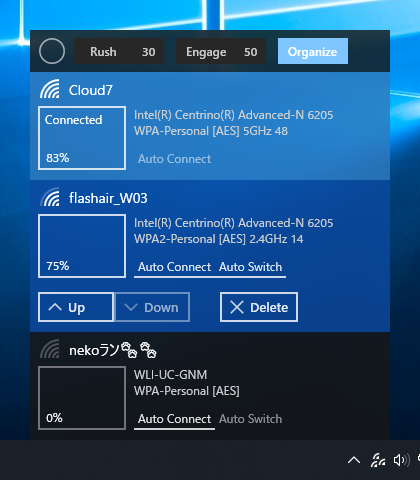
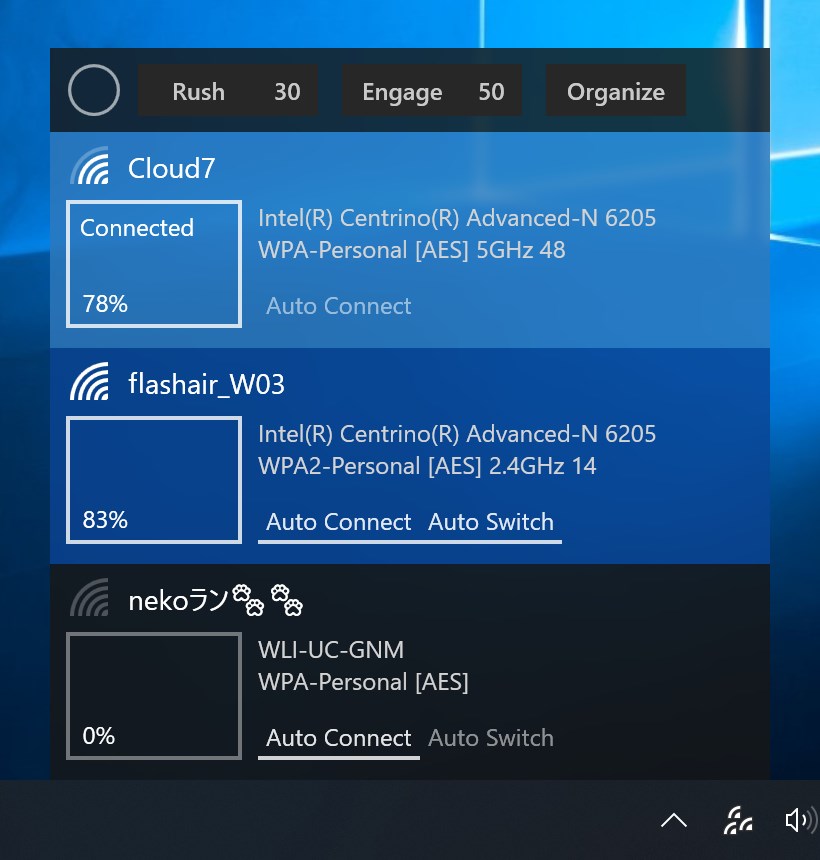
The true strength of the Wifinian Wi-Fi control tool lies in its advanced automation features. Instead of letting your operating system make frustrating guesses about which network to use, you can customize how your device behaves using three core functions:
- Rush: Forces a rapid rescan of available wireless networks at short, user-defined intervals (measured in seconds).
- Engage: Automatically executes connections based on real-time signal strength, profile priority, and your specific automatic switching preferences (triggered by your custom signal percentage threshold).
- Organize: Rearrange the priority order of your saved profiles or delete obsolete networks instantly to keep your list clean.
Who Is This Tool For?
If you regularly move between multiple office networks, home routers, and mobile hotspots, you know how annoying it is when your PC clings to a weak signal. This application is perfect for power users who need to force automatic switching to the strongest available signal without manual intervention. It simplifies profile organization and gives you the exact metrics needed to optimize your wireless roaming behavior.
How to Get Started
If you are ready to stop fighting with default network settings and want a streamlined, automated way to handle your wireless environment, this utility is highly recommended. To explore its features and integrate it into your daily workflow, head over to the official Microsoft Store to download the application for your Windows device.